



The Best Back-To-School Checklist For Tech Safety (Free PDF)

Has your school issued a device to your child before you’re even told how to keep them safe?
Do you understand what they can access on it? Or what you can control?
Perhaps your child will use their own device for school. But do you know if safety checks are in place for when it’s away from your home network?
At some point, you see your child with the school device, and it hits you.
What exactly do they have access to?
This same scenario plays out in families every back-to-school season. It may be tempting to assume the school has already filtered, monitored, and locked down the device. But do you know what protections are actually in place?
Start with our free Back-to-School Tech Safety Checklist
A few simple checks can make the school year safer from the start.
To make it easy, we’ve created a free Back-to-School Tech Safety Checklist PDF you can download, print, and use as you review school-issued devices, personal devices, and your family’s tech rules.
Then keep reading—we’ll walk through the most important checks, explain why they matter, and show you what to ask your school.
How common are school-issued devices?
School-issued devices are now the norm:
- 88% of schools issue 1-to-1 devices. 46% require students to take them home each day, according to the US Department of Education.
- Chromebooks are the most common, but iPads and personal computers are often issued as well.
- 81% of elementary school teachers said students at their schools receive devices for use in class by kindergarten, according to The New York Times.
Sadly, a prevalence of tech often leads to a prevalence of porn.
How often do kids see pornography at school?
More devices also mean more pathways for children to encounter pornography.
- 41% of teens surveyed in Common Sense Media’s 2023 Teens and Pornography report said they saw porn during the school day.
- 44% of those reported viewing pornography on a school-owned device.
- 15% saw online pornography at age 10 or younger.
Those numbers are why it’s necessary to find out exactly which protections stand between your child and unrestricted internet access.
[[CTA]]
How to make school-issued Chromebooks or tablets safer
Remember the liability form you signed when your child received a device? Now it’s time to ask the questions that probably weren’t on it.
Start by contacting your school’s IT department. Make an appointment so you’ll have enough time to walk through your concerns. If possible, have the device with you so you can test settings together.
Questions to ask your school’s IT Department
- What filtering and monitoring tools does the school use?
- Do parents have access to monitoring software? If so, ask them to show you how it works.
- Does the device route through a school VPN? Find out whether that changes what your home filters can see or block.
- Can parents install additional parental-control or filtering software?
- Who should you contact if you discover a site or app that slips through the school’s filters?
Not all school districts are equal. Some have strict device controls while others are surprisingly lax. Take a day or two before the discussion to explore the device. Discover its weaknesses and be ready to discuss them. Offer suggestions for improvement. This gives you specific questions rather than a vague, “Is this thing safe?”
Add protection through your home Wi-Fi
If the district won’t allow additional parental-control apps, your home network may still provide another layer of protection. Depending on how the school device is configured, router controls may allow you to filter websites, schedule internet access, or disconnect the device completely.
But test it first. If the school device routes traffic through a VPN, some home filtering tools may not work as expected. Even then, many routers can still shut off that device’s internet connection entirely. Then you can enable it only during times you choose.
Many routers have this capability. We personally like Orbi Mesh with Netgear Smart Parental Controls, and the Gryphon router. If your router doesn’t have parental controls built in, and you’re not in the market for a new one, consider the Bark Home add-on.
Related: Chromebook Safety Made Simple: 5 Essential Tips For A Safer School Year
What About Shared Chromebook and iPad Carts?
Not every school issues one-to-one devices. Some classrooms use shared Chromebook or iPad carts instead.
The same conversation with your school still needs to happen. Ask about filtering, monitoring, and what students can access beyond assigned programs. In addition to the above questions, you may also want to ask:
- Can students leave the assigned app or website and browse elsewhere?
- Are teachers and parents alerted when students access unapproved sites?
- How are shared devices supervised during independent work?
- What can students do if they see other students accessing inappropriate sites?
Because these devices stay at school, parents usually have less control over the settings—making school protections and supervision even more important.
BYOD safety: Protecting a personal device at school
Some schools allow BYOD (Bring Your Own Device). When your family owns the device, the responsibility usually shifts to you. It’s important to understand how your district handles personally owned devices.
Here are some steps to get your child’s BYOD ready for school. Remember that layers are your friend. We strongly recommend using both device-level and network-level controls.
- Begin with built-in parental controls like Google Family Link. Ensure your parent account is linked to the child account. Watch this tutorial by Sarah Kimmel of Family Tech for step-by-step instructions.
- Consider adding additional filtering and monitoring controls to individual devices. We love Bark and Canopy.
- Next, set up content filtering at the network level. Just like a school-issued device, you can use router controls or an add-on like Bark Home.
- Test protections and functionality away from home. A family-owned device can be beautifully locked down on your Wi-Fi and then behave differently at school. Ask the school if you can bring it in before school starts and test if your controls work and your student can access required Edtech platforms.
It’s important to note that some districts require their monitoring software to be added so it essentially functions like a school-issued device. One district we know of with this requirement doesn’t allow any additional parental control apps to be added. In cases like these, you’ll want to treat this as a school-issued device and take the precautions listed above.
Related: How Bark Home Protects Every Device on Your Home Network
Set tech rules that apply to every device
Whether the device belongs to the school or to you, set expectations for where, when, and how it can be used.
Here are some useful rules we recommend to reduce opportunities for risky online behavior:
- Keep portable devices in common areas. No devices in bathrooms, bedrooms, or behind other closed doors.
- Set up time limits in two places: the router and the device.
- Shut off the internet at bedtime —to every device in the house. Then devices are turned into parents overnight.
- Charge devices outside of the bedroom. This pairs with the bedtime cutoff. Go a step further and don’t allow charging cords in the bedroom.
To reduce screentime battles over school devices, treat them like any other school supply: they come out for schoolwork and go away when the work is finished.
Help your child install the “internal” filter
No technology filter is perfect. And kids will have access to devices out of your control. As much as we wish it weren’t true, kids will be exposed to pornography and other inappropriate online content.
That’s why the most crucial filtering layer is the internal one, because it always travels with your child.
Here are our three steps from the Good Pictures Bad Pictures read-aloud books to give kids an internal filter:
- Define the word pornography in an age-appropriate way.
- Explain that viewing pornography can hurt their brain (just like drugs).
- Give them an action plan to use when they see sexually explicit media. You can use the Turn, Run & Tell plan from Good Pictures Bad Pictures Jr., or the CAN DO Plan from the original Good Pictures Bad Pictures or Good Pictures Bad Pictures Guide for Girls.
Remember, a personal action plan works even on devices you don’t own. And goes everywhere your child goes.
The Good Pictures Bad Pictures read-aloud books make it easy for parents to provide kids with an age-appropriate plan that’s easy to remember.
Complete your back-to-school tech safety check now
When your child receives a school device, there’s often plenty of information about how to protect it from loss or damage. But protecting the device is only half the job.
Download our free Back-to-School Device Safety Checklist and work through it before—or as soon as possible after—the first day of school. Keep it handy when you talk to your school’s IT department and use it to double-check the devices your family owns.
A few minutes spent checking settings today can save a lot of trouble and heartache tomorrow. It may seem daunting, but our checklist will guide you step by step.
Your child deserves to have safer experiences with school technology.
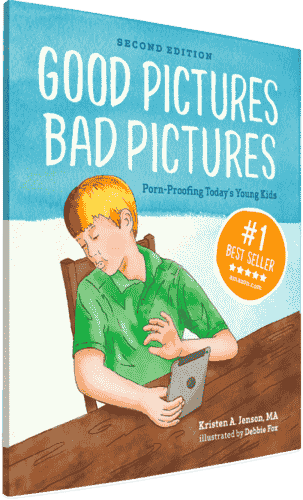
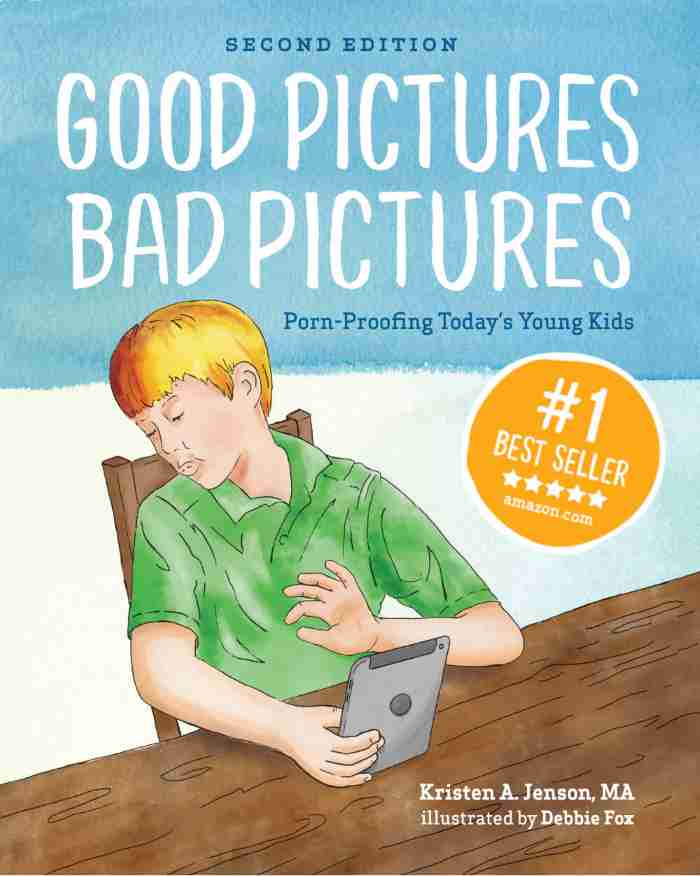
Good Pictures Bad Pictures
"I really like the no-shame approach the author takes. It's so much more than just 'don't watch or look at porn.' It gave my children a real understanding about the brain and its natural response to pornography, how it can affect you if you look at it, and how to be prepared when you do come across it (since, let's face it... it's gonna happen at some point)." -Amazon Review by D.O.